How to request human approval and intervention in your workflows
Some workflows can run safely in unattended mode. Others, such as resource deletions, are more impactful and may require review by stakeholders before proceeding. To address this, OpenOps offers two Human-in-the-Loop mechanisms: approvals and notifications.For example, you can create a workflow that flags idle RDS instances for review, prompting human approval before any scaling down or termination actions are taken.
You can automate sending your stakeholders messages with actionable links or buttons and make your workflow stop executing until the receiver clicks one of these links or buttons. Depending on their choice, you can split the subsequent steps of your workflow into conditional branches.OpenOps offers dedicated approval request features for Slack and Microsoft Teams, as well as a more generic approval mechanism that you can use with other communication channels such as email.
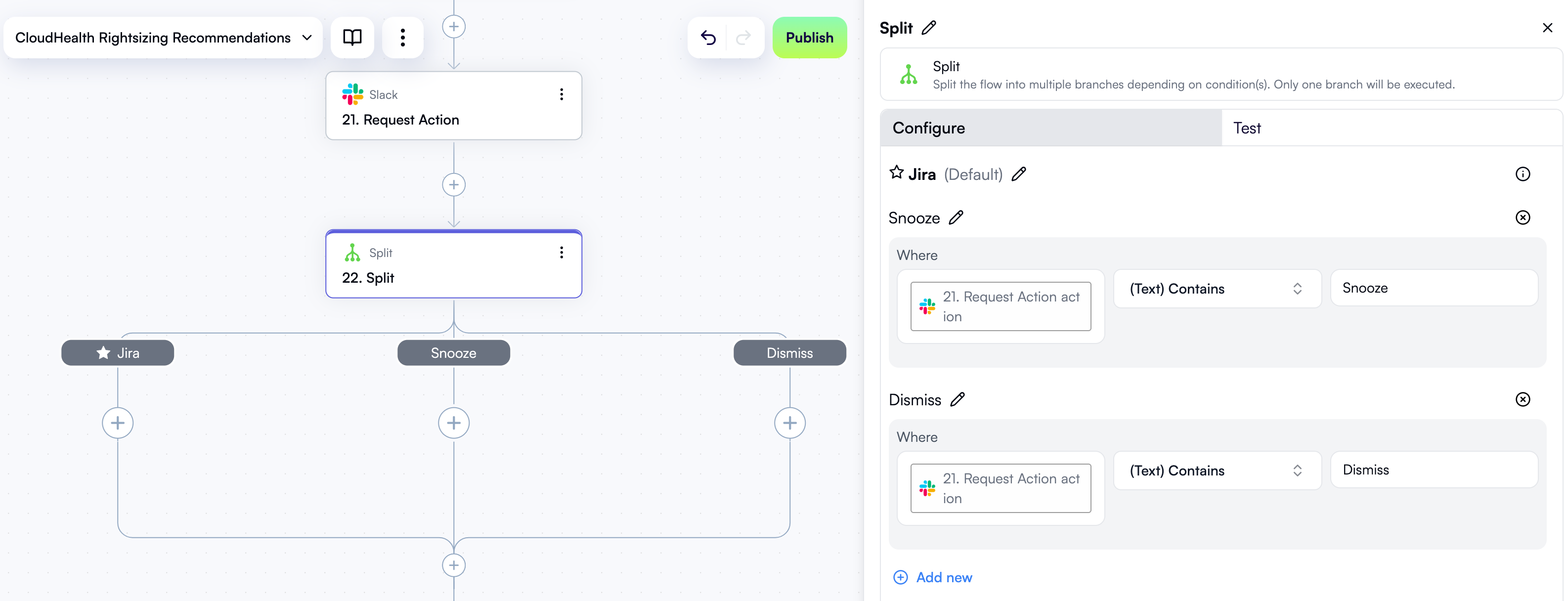
One of Slack-related actions, Request Action, is the most straightforward way to request approval. It lets you build a Slack message with standard action buttons, send it to a chat or a public channel, and wait until the recipient clicks one of these buttons, signifying their decision:When this action fires, the Slack user receives a message that you’ve defined in the action’s properties. The message may look like this:As soon as the user clicks one of the buttons, your Request Action step receives this as the output. You can then create a conditional branch with the Split action and implement distinct steps depending on which button the user clicked:
If you want to build approval requests with more customization options, you can use the Send Message action in the Slack block instead of Request Action.The upside of Send Message is that it enables you to create approval requests using Slack’s rich Block Kit UI framework.However, Send Message doesn’t wait for a reply from the recipient. Instead, use the Wait For User Action action and pass the output of Send Message to it. This allows the workflow to capture button clicks in the approval request. Once a button click associated with a decision is captured, you can then use the Split action to add workflow steps depending on the decision.
OpenOps provides the following actions in its Microsoft Teams block:Request Action is the action you can use to request approval. It lets you build a Teams message with action buttons, send it to a chat or a channel, and wait until the recipient clicks a button to convey a decision:When this action runs, the Microsoft Teams user or channel receives a message that you’ve defined in the action’s properties. The message may look like this:When the user clicks one of the buttons, your Request Action step receives the selection as its output. You can then create a conditional branch with the Split action and implement different steps depending on which button the user clicked:
To request approvals through other communication channels, such as email, use the Approval block of actions:In this case, you can create the approval part of your workflow as follows:
Add the Create Approval Links action from the Approval block. This action generates two links: one for approval and one for disapproval.
Add an action to send the two links to a stakeholder. For example, you can use Send Email from the SMTP block or Send Email from the Microsoft Outlook block.
Add the Wait For Approval action from the Approval block. Once the stakeholder clicks a link, this action updates the approval status accordingly.
Add the Condition action to define steps for approval and disapproval.
Here’s a sample workflow that uses Create Approval Links, delivers an email notification using Send Email from the SMTP block, and then proceeds based on the output of the Wait For Approval action:The email with approval links may look like this: